
I was talking to a co-worker one day and noticed a box of “Dragon Droppings” candy on his shelf. WordPerfect Corporation produced the candy to promote drag-and-drop support in WordPerfect for Windows. This tip looks at what is required to provide the same support in Clarion for Windows applications.
Drag-and-drop is a user interface component that can provide an intuitive method for users to interact with your program. In order for drag-and-drop to be effective in a user interface, there are two rules that must be followed:
There are three steps you should follow to implement drag-and-drop. They are:
A successful drag-and-drop operation involves two controls: a drag source and
a drop target. The drag source is the control where the drag action begins.
You can use a LIST box or a REGION as a drag source
in Clarion. The drop target is where the user releases the cursor to complete
the drop action. Any Clarion control can be designated as a drop target except
for IMAGE, VBX, or OLE controls or graphic
primitives (BOX, LINE, ELLIPSE).
There will be time where you want to use an unsupported control (often an image)
as a drag source or drop target. The key to making this work is to create a
REGION that covers the same window area as the IMAGE
(or other) control and use the REGION as the source or target.
To designate a control as a drag source or drop target, you must specify a target string for the control on the Extra tab of the Properties dialog. A target string is a series of one or more string values separated by commas that identifies a drag-and-drop control. There are three types of string values you can specify in a target string:
TRASH, which allow drag-and-drop
between controls in a single application
~TRASH, which allow drag-and-drop
between two different Clarion applications
~FILE, which allows a CW application
to accept files from File Manager or the Windows Explorer
You will only get a successful drop operation when one of the string values
in the drag source target string matches one of the string values in the target
string of the drop target. You can determine which component of the target strings
matched by calling either the DRAGID or DROPID function
after a successful drop.
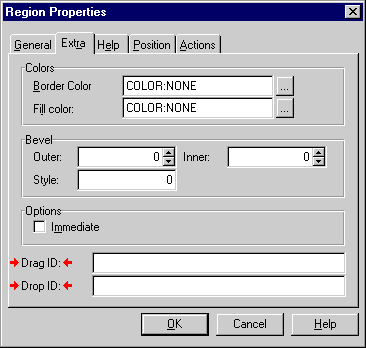
Depending on the type of control, you may be able to specify a Drag ID, a Drop
ID, or both. The Properties dialog for a REGION control is shown here with the
fields for the Drag ID and Drop ID target strings marked with red arrows. Specifying
a Drag ID (such as TRASH) makes a control into a drag source. Specifying
a Drop ID (such as TRASH,~FILE) makes a control into a drop target.
Once you have enabled drag-and-drop on the controls, it is time to build the code structure to support drag-and-drop. There are three new events you have to deal with when doing drag and drop:
EVENT:Dragging is posted to your window's accept loop when a
drag-and-drop operation is in progress. This event is posted while the user
is moving the mouse with the button held down. (The user must press the button
down on a valid drag source first.)
EVENT:Drag is posted to the accept loop when the user releases
the mouse button.
EVENT:Drop is posted after a successful drag-and-drop. You
will only receive this event if the Drag ID and Drop ID target strings have a match.
At a minimum, you will want to add code to be processed for EVENT:Drop.
This code should check the DRAGID or DROPID function
to determine which target string value matched and perform whatever action needs
to happen after a successful drop. The basic code structure looks like this:
ACCEPT
  CASE EVENT()
  OF EVENT:Drop
    IF DRAGID() = 'TRASH'
      !Do the trash action here
    END
  END
END
An important part of drag-and-drop is providing visual feedback to the user during the operation. The Clarion run-time libraries handle the basics of this by changing the cursor during the drag operation. When the user is dragging and is not over a valid drop target, the cursor changes to the familiar “no” symbol. As the user moves the cursor over valid drop targets, the cursor changes from the “no” symbol to a down arrow.
You can override the standard drag-and-drop cursors by providing your own cursor
handling code. To do this, you add code to the Dragging and Drag
events. The EVENT:Dragging code can check the current value of
the DRAGID function to determine if the cursor is over a valid
target. Based on the results of this function, the code can change the cursor
to indicate to the user what will happen.
The EVENT:Drag code simply cleans up any cursor changes made in
the EVENT:Dragging code. (Without this code, the cursor will be
“stuck” after the mouse button is released.) The code structure
to do make this happen (from the sample program) looks like this:
ACCEPT
  CASE EVENT()
  OF EVENT:Dragging
    CASE DRAGID()
    OF ''
      SETCURSOR('~NO.CUR')
    OF 'NORMAL'
      SETCURSOR('~DROPPAPR.CUR')
    OF 'TOPSECRET'
      SETCURSOR('~DROPFOLD.CUR')
    END
  OF EVENT:Drag
    SETCURSOR()
  OF EVENT:Drop
    !Handle drop action here
  END
END
Drag-and-drop can be as simple as dragging from one control to another on the same window or as complex as you want to make it. The sample program demonstrates drag-and-drop with multiple sources and targets.
The program represents the filing system for Private Eyes, Inc. The window has two list boxes, one containing normal files and one containing top secret files. You can drag items between list boxes or drop them on a group of icons representing different actions. The program is also set up to handle drag-and-drop from File Manager or Explorer. Try dragging a file onto the trash can (don't worry - it doesn't really delete the file) to see this in action.
By mastering drag-and-drop you add another tool to your arsenal of user interface items. It is simple to implement but when used correctly provides a powerful, intuitive way for your users to tell your program what they want it to do.
 Download the sample code