
Network DDE (Dynamic Data Exchange) allows applications to communicate with each other across a network. The Hearts game that ships with Microsoft Windows is an example of an application that uses network DDE. When playing Hearts, one player is designated as the dealer and up to three other players may join the dealer's game. During the game, the dealer's computer uses network DDE to communicate with each of the other computers in the game.
Programs written in Clarion for Windows can take advantage of network DDE to communicate with other Clarion applications or with non-Clarion applications that support DDE. To illustrate how to convert a program to use network DDE, I have created a basic DDE server and client. The DDE server allows you to enter a secret word; the DDE client retrieves the secret word from the DDE server. The sample programs are available for download. This .ZIP file contains the .CLW and .PRJ files for both the DDE client and DDE server.
The example programs are intentionally simple. They are not intended to teach DDE techniques. For more help with Clarion DDE, refer to the DDE-Dynamic Data Exchange chapter in the Clarion User's Guide or Developing Clarion for Windows Applications by Ross Santos and Dave Harms.
When using DDE, at least two programs are involved. The DDE server program registers itself with the Windows DDE system as a DDE server and it becomes visible to other applications on the system. The program registers an application and topic name which DDE client programs use to refer to the DDE server. The DDE client program starts a conversation with the DDE server using the application and topic names to specify which program it wants to talk to. The Windows DDE system handles the task of routing messages between the applications.
For the DDE server, network DDE is no different than standard DDE. The DDE server receives and responds to requests from the Windows DDE system and the DDE system handles the task of routing messages between the two machines. Because of this, any program that acts as a DDE server can use network DDE even if you can't modify the program.
For the client program, only the parameters of the Clarion DDECLIENT function or equivalent function call need to change. Instead of calling DDECLIENT with the application and topic names, the function is passed the computer name and share name to connect to. You must be able to modify the application and topic name that the client program uses in order to use network DDE.
The share name is the thing that makes network DDE work. In standard DDE, the DDE client connects to a certain application and topic. In network DDE, the application and topic are set up on the server computer as a DDE share. Instead of requesting a connection to the application and topic, the client program requests a connection to the computer and DDE share.
As an example of a DDE share, here is the registry information on my computer for the Hearts DDE share:
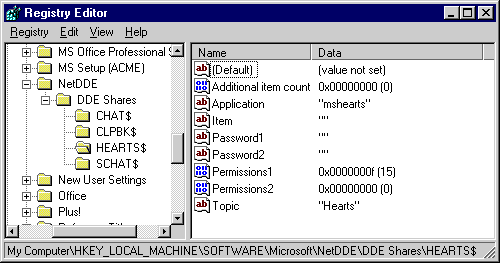
The application name for Hearts is “mshearts” and the topic name is “Hearts”. These are associated with the share name “HEARTS$”, which is the share name that the other Hearts programs (the DDE clients) use to connect to my computer. When another computer requests a connection to my computer using the share name “HEARTS$”, the DDE system on my computer routes the DDE messages to the application that registered the application name “mshearts” and the topic “Hearts”. All of the communication details are handled by the DDE system using this “translation table” of DDE shares to application and topic names.
Before converting the sample programs to use network DDE, compile and test them on a single machine using standard DDE. Once you are sure that the DDE conversation works correctly using standard DDE, it is time to begin the conversion process to network DDE. The following tasks will have to be performed:
The first step to set up network DDE is to create the DDE share on the server computer. There are several methods you can use to do this. You can:
If you are distributing your application, you will probably want to add the code to your application to add the DDE share using the NDDEShareAdd function. This eliminates the need for the end-user to created the DDE share manually. I only used this test application on three computers while testing, so I added and deleted the DDE shares using the Windows 95 Registry Editor and the DDE Share Manager in Windows for Workgroups and Windows NT.
To create the DDE share in the registry, I duplicated the information from the Hearts DDE share and changed the application and topic names to match my program. The information for my DDE share “DONTTELL$” is shown below:
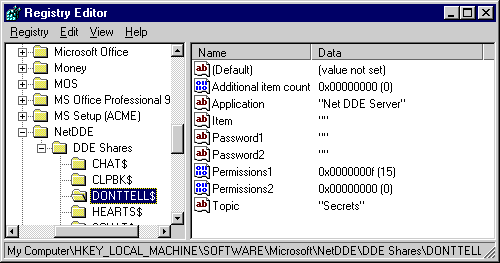
You have probably noticed that all of the share names listed here have a $ as the final character. This is a naming convention used for DDE shares that you should adhere to. You can get more information about the Password and Permission entries by looking at the Network DDE Share Manager program (DDESHARE.EXE).
After creating the DDE share on the server computer, the DDE client application needs to be changed to use network DDE. Only the DDECLIENT function call needs to be changed. Instead of using the application and topic names when calling DDECLIENT, you should replace them with the computer and share names like this:
Loc:DDEClientChan = DDECLIENT('\\SIMBA\NDDE$','DONTTELL$')
The application parameter has been replaced with the string '\\SIMBA\NDDE$'
to tell the DDE system which computer to connect to. This string is in Universal
Naming Convention format, which specifies network resources as \\computer_name\share_name.
In this case, the computer name is SIMBA and the share name (this is a network
share, not a DDE share) is NDDE$. NDDE$ is a reserved share name used by Windows
to connect to the DDE system.
The topic parameter has been replaced with the DDE share name, including the trailing dollar sign. This tells the DDE system to connect to the DONTTELL$ share that was created in the previous step. After the connection is made, the server computer uses the DONTTELL$ share in the registry to route the DDE messages to the correct application and topic.
Once the DDE share has been created and the client program modified, you are ready to test the DDE application. Before the programs can communicate over a NetDDE link, the NetDDE transport layer must be initialized. In Windows NT, this will happen automatically. For Windows 95 and Windows for Workgroups, you may need to start this manually by running NETDDE.EXE in your Windows directory. If your application will be running on these platforms, you may want to add the code to have your program start the NetDDE transport layer.
After the NetDDE transport layer is running, start the DDE server program on the server computer and then go to another workstation and start the client program. When you press the Get button, the secret word should be displayed in the window. The first transfer may take a couple of seconds while the link is initialized. Subsequent transfers will be faster.
This example is fairly simple and should work for you. If it doesn't work, first check that you replaced my computer name (SIMBA) with the name of the computer that your DDE server program is running on. Another test you can do is to try running the Hearts program. If Hearts works correctly, the test programs should work also.
One important difference between network DDE and standard DDE is that your program
gets a message that the DDE connection has been established before the connection
is really established. When you call the DDECLIENT function, a DDE client channel
number is returned, which indicates that the connection has been established.
When making a network connection, the channel number will be returned before
the connection has been established with the other machine. If the connection
fails after this happens, EVENT:DDEClosed will be posted to your
ACCEPT loop and all subsequent DDE calls will return error code 602 (DDE Channel
Not Open). You will need to add the code to watch for this to your program.
Also, when establishing a network connection from Windows for Workgroups or Windows 95 to Windows NT you will be presented with a dialog box asking for a user name and password to make the connection to the Windows NT machine. This enforces the Windows NT security requirements. You can not bypass the password dialog, but it is possible to use the Windows API to complete the dialog. This technique for mucking with other programs' windows may be a good subject for a future tip. In meantime, send me email if you would like additional information.
Network DDE is a flexible way to transfer information across a network. Because you do not need to modify the DDE server to use network DDE, any DDE server can be used as a network DDE server. For example, you could create a Clarion application that transfers data across a network to an Excel spreadsheet running in another location.
Network DDE also works independently of the network protocols being used. A network DDE application can communicate using any network protocol supported by Windows, including IPX, NetBEUI, and TCP/IP. I have used network DDE without problems across the Internet.
Although network DDE is not the solution for all network communication tasks, it is an effective tool for communicating information between applications on a network. By learning to implement this protocol, you will have another choice of tools to use when a network programming situation arises.
 Download the sample code